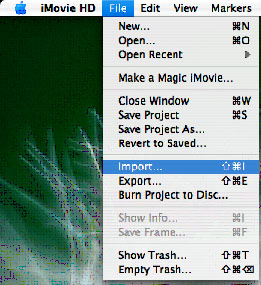
Now that were more familiar with the iMovie interface, let’s get started importing some clips to work with. Go to the file menu, and select “Import…” This should bring up a dialog, showing the contents of your computer. Select your audio and video clips, and lets put them into your movie.
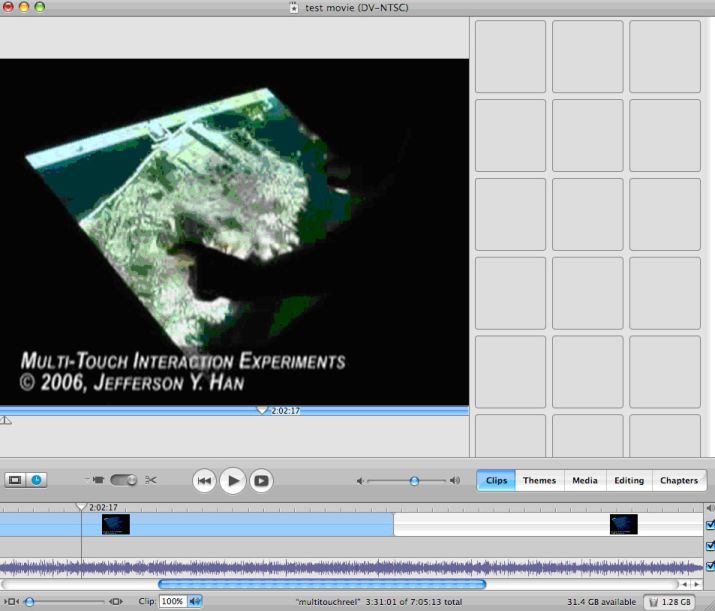
After you finish importing your video and audio, youll see the video appear in your iMovie library. The audio will go straight into your timeline, as your movie soundtrack.
Now we can start working with your video. Drag your video clips into part of your timeline.
|